How to run a Windows app
in a browser.
A browser can't run a Windows .exe. What it can do is show you one that is running somewhere else. That is the whole idea behind running Windows apps in a browser: the application stays on a Windows machine, and the browser displays it and sends back your clicks and keystrokes.
01
Windows host
Your app runs here, in its own session account
02
Broker
Streams what changed, enforces clipboard and file policy
03
Browser tab
Shows the app, sends mouse and keys back
What actually happens
The application launches on a Windows host. A capture process watches its window and a broker sends what changed on screen to the browser as small image tiles. When the screen barely changes, very little is sent.
Going the other way, the browser sends mouse movement, clicks and key presses to the host, where they are replayed into the application. To the app, it looks like someone sitting at the machine.
What you need
There are only a few moving parts, and none of them live on the end user's device.
- A Windows host that can run the application. It can be a machine you already own or a cloud instance.
- Something that launches the app on demand and gives each person their own session.
- A broker that streams the screen to the browser and carries input back.
- A way to control who can open what: sign-in, roles and a catalog of apps.
Where this works well
Line-of-business software is the sweet spot: ERP and accounting clients, vendor tools, internal apps nobody can rewrite, and anything that currently requires installing something on every laptop.
It also suits people who only need an app now and then, such as contractors, auditors and field staff, because there is nothing for them to set up.
Where to be careful
Single-application streaming is built for classic Windows interfaces. Applications that draw with the GPU, such as Chromium and Electron apps, WPF and UWP, can render poorly in that mode. Streaming them as a full desktop is the usual fix.
Cold launches take time because a session has to be created. Keeping sessions warm shortens that, and is plan-dependent in Onscryn. Windows itself and your own software carry licences too, which is worth settling early.
How Onscryn does it
Onscryn runs your application on a Windows host you control, gives each session its own Windows account, and streams it to a browser tab. You publish an app once, share a link, and add roles, data controls and recording as you need them.
What the user sees
From the person's side there is very little to learn. They open a link or pick the app from a catalog, sign in, and the application appears in a tab. They can resize the tab, go full screen, and use the keyboard and mouse as normal. Closing the tab, or ending the session, stops it.
Because the application is running on a host and not on their device, it does not matter whether they are on a Mac, a Chromebook, a tablet or a locked-down PC. What matters is a modern browser and a decent connection.
Single app or full desktop
Most people only need a particular application, so the usual setup streams that one window. That keeps the experience focused and the footprint small.
Some people need more: a taskbar, a Start menu, several applications side by side. A full-desktop mode streams the whole Windows desktop for those cases, and it is plan-dependent. The two can run side by side, so you do not have to pick one for everybody.
What it takes to set up
The work is mostly on the host side. You prepare a Windows machine that can run the application, enroll it, and publish the app in a catalog with the details it needs to launch: where the executable is and any arguments. From there, people launch it themselves.
You can use your own Windows hosts, including ones inside your network if the application needs to reach internal systems. What the application can reach depends on where its host sits.
Performance, in practical terms
Two things shape how it feels: the distance between the user and the host, and how much of the screen is changing. Sending only what changed keeps bandwidth modest for typical business applications, and a nearby host keeps input responsive.
Cold starts are different from warm ones. A fresh session has to create the Windows account and launch the app, which can take around a minute. Keeping sessions ready in advance shortens that, and is plan-dependent. If launch time matters to your users, plan for it from the start.
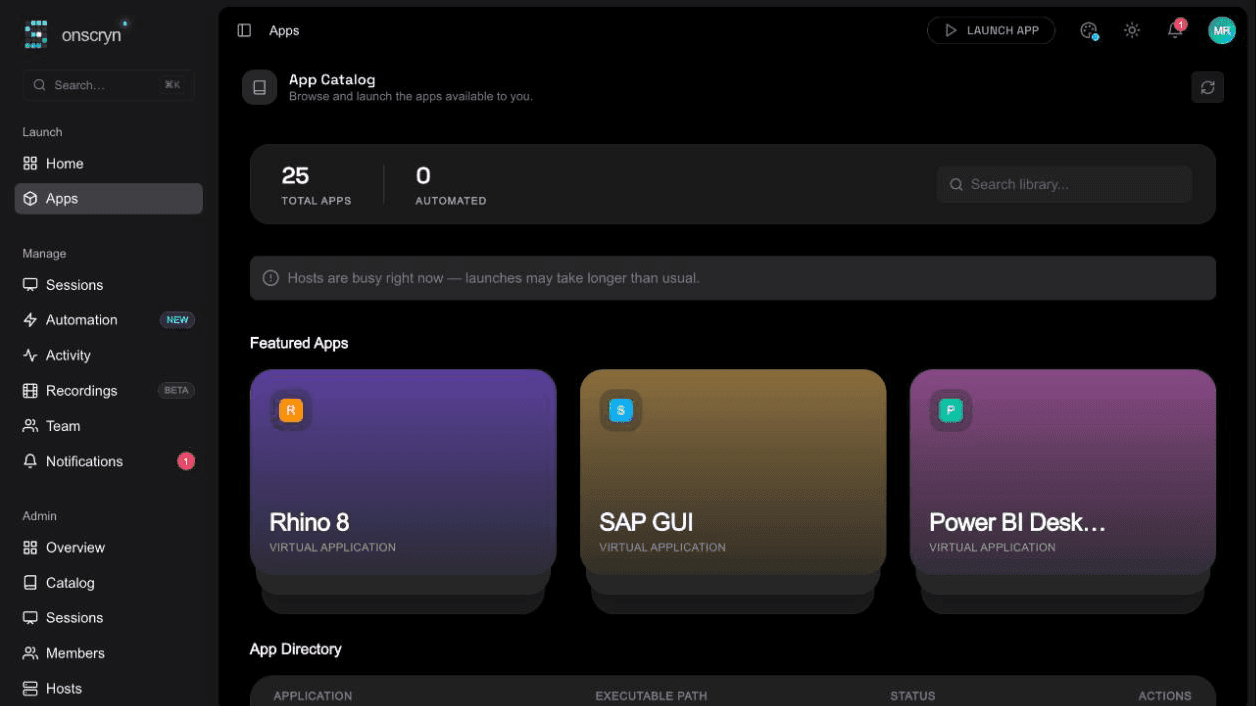
Illustration
A worked example
Imagine a small accounting practice that relies on a Windows-only tax package. Every new hire means a laptop, an installer, a licence key and an hour of setup, and seasonal staff are the worst of it.
They put the package on one Windows host and publish it as an app. A seasonal hire gets a link, signs in, and is working in the real application within a minute or two. When the season ends, their access is removed and their next request is refused. Nothing was installed anywhere, and nothing needs to be cleaned up afterwards.
Before you try it with your own app
- Can the app run on Windows without special hardware, such as a dongle or a particular GPU?
- Does it draw with the classic Windows toolkit, or with the GPU? If it is GPU-heavy, plan to test it as a full desktop.
- Where does it need to connect: a database, a file share, a licence server? Place the host so it can reach them.
- Does it keep per-user settings or local files that need to survive between sessions?
- Have you checked the licence terms for the app and for Windows on a shared host?
- Who should be able to open it, and should they be able to copy data out?
Related features
Questions.
If it runs on Windows it is a candidate, and it does not have to be modified. Fit varies with how the app draws its interface, so it is best proven by running yours.