UI tree automation,
explained.
When an application has no API, the only way in is its screen. There are two ways to drive a screen: aim at pixel positions, or read the controls. Reading the controls is slower to describe and far more durable, and it is how Onscryn's workflows and Copilot work.
By the Onscryn team · Published · 7 min read
What a UI tree is
Behind a Windows application's window sits a structure that describes what is in it: this is a window, inside it is a toolbar with a Save button, below it a form with a text box labelled Invoice number. It is the same structure that assistive tools such as screen readers rely on.
A UI tree is that structure, laid out as a tree you can read and act on.
Why it beats coordinates and pixels
A script that clicks at x=412, y=300 breaks when the window moves, the screen resolution changes, or a button is nudged by an update. A script that clicks the control named Save does not care where it moved to.
Reading text from a control is also more reliable than reading it from a screenshot, because you get the characters themselves, not a guess at them.
Aiming at the screen
01
Click at a position
A fixed spot on the screen.
02
The window moves or a button shifts
An update, a new resolution, a nudged control.
03
The click lands somewhere else
The run drifts or fails.
Reading the controls
01
Read the UI tree
Buttons, fields, menus and dialogs, with their names.
02
Act on the control by name
Click Save, type into Invoice number.
03
Check the result
Wait for a control, assert text, or stop and say so.
How Onscryn uses it
The UI tree is the common ground for everything automated.
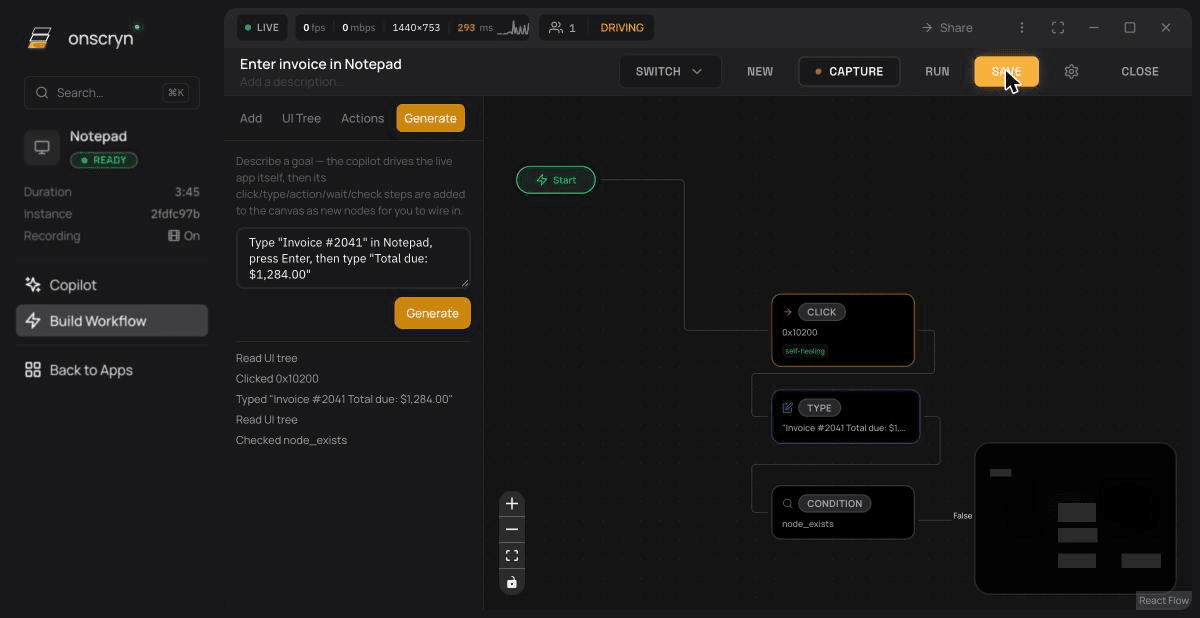
- The workflow builder lets you pick elements straight from the tree in a live session and connect steps on a canvas.
- The Copilot reads the live tree, plans the next action from what is really on screen, and then clicks, types, waits and checks the result.
- When a control cannot be found the first way, the engine tries fallback selectors before it fails the run.
Where it runs out
The tree only contains what the application chooses to expose. Classic Windows interfaces tend to expose a lot. Interfaces that draw everything themselves, such as some games, canvases and custom controls, expose little or nothing, so there is nothing to select.
A redesign can still need an edit to your workflow. Reading controls by name is far more tolerant than pixels, but a screen that has been reorganised is a different screen.
Test before you commit
The quickest check is to open the application in a live session, look at its tree, and see whether the controls you need are there with sensible names. If they are, automation is realistic. If not, expect limits.
Related features
Questions.
It overlaps with robotic process automation in purpose. The difference here is that the automation runs inside the streamed session, alongside access control and recording.