Quick start: publish your first app
6 min read
This is the shortest route from a Windows application to a link a person can open. You will enroll one Windows host, register one application on it, open it in a browser, and invite a colleague. Each step has its own page in these docs if you want the detail.
Before you begin
You need three things in place before you start.
- An Onscryn account with an owner or admin role. Only owners and admins can enroll hosts and register apps.
- A Windows machine that can run your application. It can be one you already own or a cloud instance, and it needs to reach Onscryn over the internet.
- Your application installed on that machine, and a valid licence for it. Windows and your own software need licences whichever way you deliver them.
1. Enroll a host
In the dashboard, open Admin, then Hosts, and choose Enroll a new host. Onscryn creates a single-use enrollment token and an install command for it. The token is shown once, so copy the command straight away.
Run the install command on the Windows machine. It installs the Onscryn agent, which registers the machine with your organization. When the host appears in the list as online, it is ready.
A host enrolled this way is dedicated to your organization. See the hosts guide for how that differs from the shared pool.
2. Register your application
Open Admin, then Apps. Under Installed Applications, add your application and give it the path to its executable on the host. Choose how it is captured: SDK apps link the Onscryn capture library themselves, while generic apps are captured externally by the agent with no access to the source code.
Most existing Windows software is a generic app, so start there. Leave the quality settings at their defaults until you have seen it run.
3. Launch it
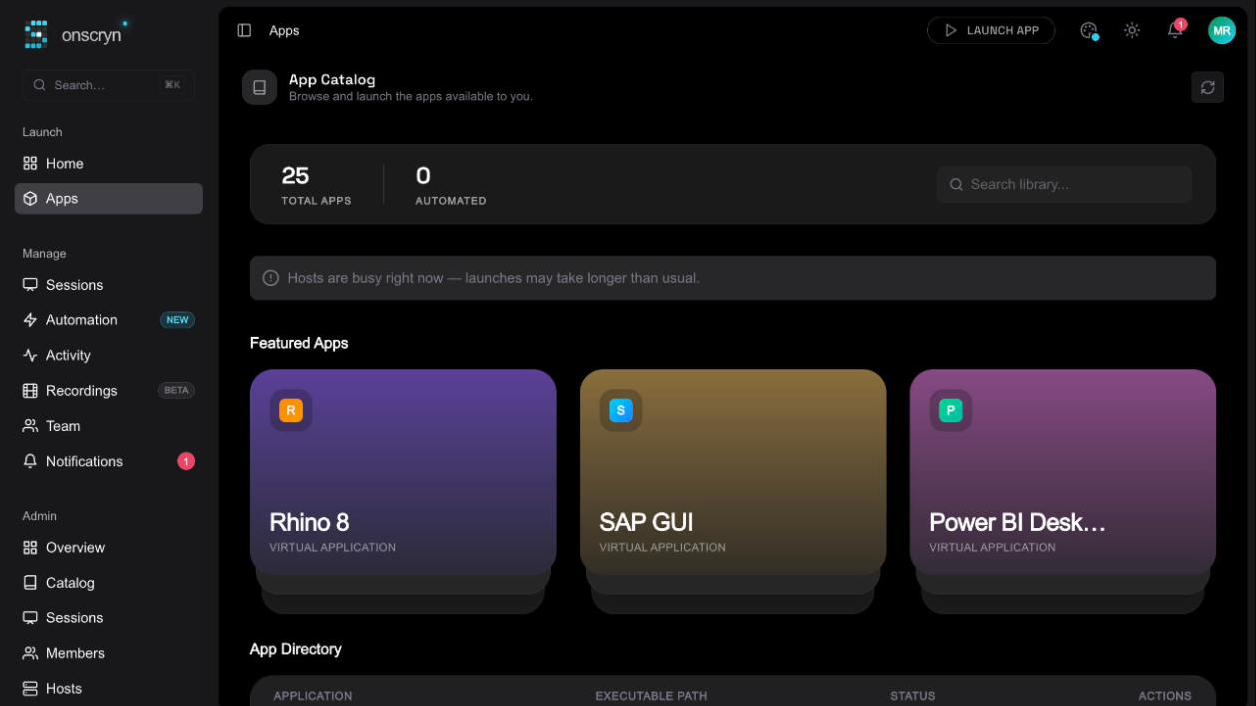
Open the app catalog from the main navigation, choose your application and launch it. A session starts on the host and the application appears in the tab. Click around, type, and open a file from inside the app to confirm it behaves as it does on a normal PC.
Launch time depends on whether a warm slot is available. A cold start takes noticeably longer than one that was ready and waiting.
4. Invite a colleague
Open Admin, then Members, and invite a teammate by email. Choose a role, and they receive an invitation. Once they sign in they see the apps your organization has published and can launch them from the same kind of link.
5. Decide what may leave the session
Clipboard and file transfer default to on, and the watermark defaults to off. If this application handles anything sensitive, set the policy now, before you invite more people. Policy is read when a session launches, so a change applies to new sessions.