Members and roles
4 min read
People get into Onscryn through an invitation or through single sign-on, and what they can do depends on their role. Removing someone, or changing their role, takes effect on their very next request.
Invite someone
Open Admin, then Members, and choose Invite by email. Enter their address, pick a role, and send. The invitation sits under Pending invites until they accept it, and you can see its status there.
The roles
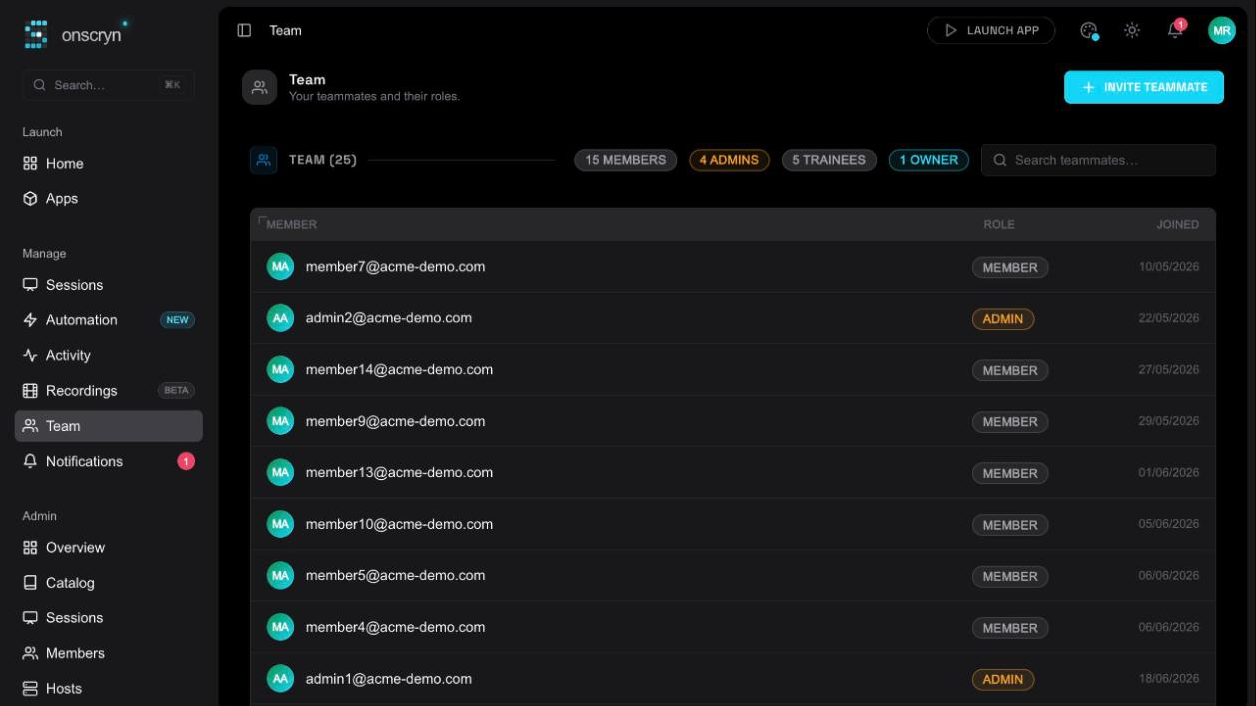
Roles are scoped to your organization. The Members page shows a breakdown of how many people hold each.
- Owner and admin manage the organization: members, hosts, apps and settings.
- Member launches the applications the organization has published and sees their own sessions and activity.
- Viewer is a read-only role, meant for watching rather than operating.
Change a role or remove someone
On the Members page you can change a person's role or remove them. Every request is checked against a token version, so removing a person or changing their role makes their next request fail. Nothing waits for a token to run out.
A policy change applies to new sessions, but access itself ends on the next request.
Admin views
Admin views are for admins. Members see their own sessions and activity. The audit log, which records account and automation events, is plan-dependent.