Applications
5 min read
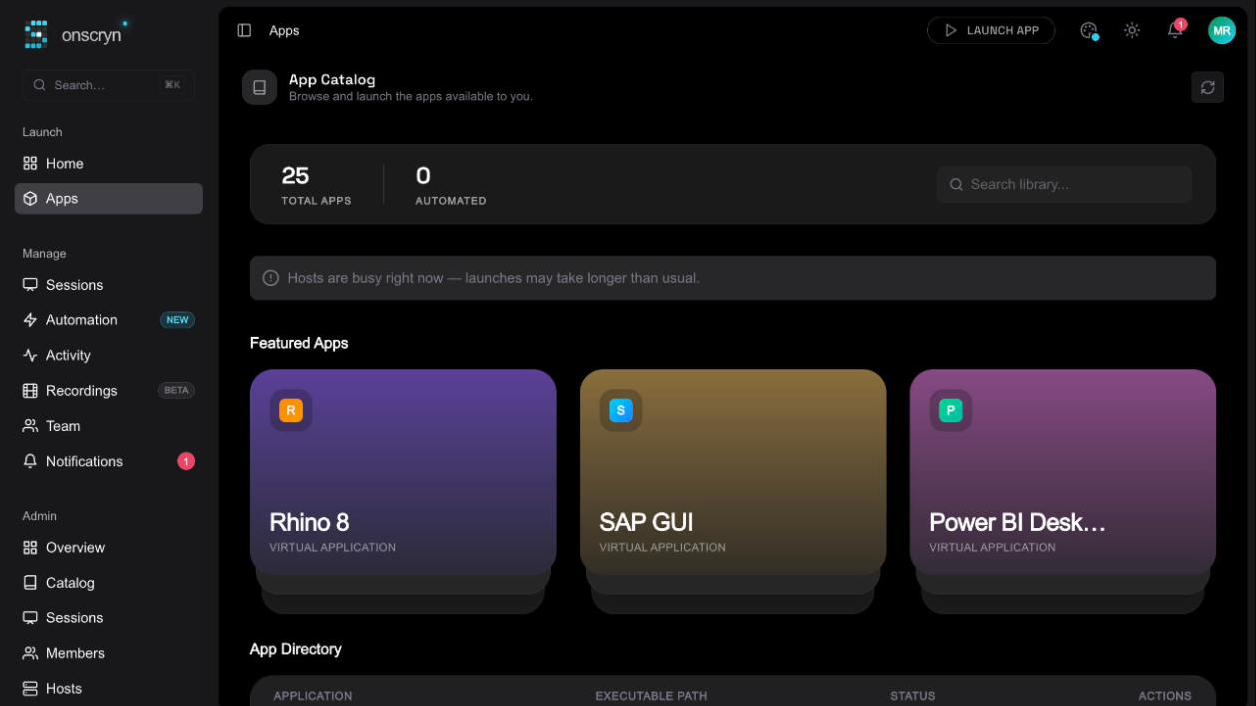
An application is the thing your users launch. You register it once, with the path to its executable on a host, and then decide how it is captured, how sharp the picture should be, and whether sessions of it are recorded.
Register an application
Open Admin, then Apps. The Installed Applications table lists everything registered for your organization, with each app's path, capture type, quality and warm slots. Add an application and give it the path to its executable on the host.
Choose a capture type
The Capture column offers two kinds, and the dashboard describes the difference this way:
- SDK apps link the Onscryn capture library themselves.
- Generic apps are captured externally by the agent, with no access to the source code.
Tune quality
The Quality column sets the tile codec and the compression quality. WebP is the smallest, JPEG is a fallback, and Raw sends uncompressed pixels. Quality runs from 1 to 100, where higher is crisper but uses more bandwidth. Start with the defaults and change one thing at a time.
Keep warm slots ready
Warm slots are pre-provisioned unattended sessions kept ready, so a user can attach straight away instead of waiting for a cold start. Set a number per application. They use host capacity while they wait, so keep them for the apps people open most.
Recording, enabled and connected mode
Each application also has switches of its own:
- Enabled: turn the app off without deleting it.
- Recording: when off, new sessions of the app are not recorded. It does not stop a session that is already recording.
- Stays RDP-connected after launch: keeps the session connected, and uses a licence slot for the session's lifetime. Check what your licensing requires before you turn it on.
Delete an application
Deleting asks you to confirm. It removes the application from the catalog for your whole organization.