Watermarking remote sessions
to deter leaks.
Once an application is on screen, a determined person can always photograph it. A watermark does not prevent that. What it does is put the viewer's identity into every picture, so a leak is traceable and the person doing it knows that.
By the Onscryn team · Published · 5 min read
What a watermark can and cannot do
A visible watermark ties an image to a person and a moment. If a screenshot or a phone photo of the screen turns up somewhere it should not, the email and the time on it say whose session it came from.
It cannot stop the capture, and it cannot hide the data beneath it. Treat it as accountability, not as a lock.
Where the mark is drawn matters
A mark that is added by the browser page can be removed in the browser. In Onscryn the watermark is drawn into the frames themselves before they are streamed, so it is part of the picture. It shows the viewer's email and the time across the stream.
01
A person launches the app
The policy for that app, or for full desktops, is read as the session starts.
02
Your rules are applied
Clipboard, file transfer, watermark and recording are set for that session.
03
Blocked means blocked
A blocked action never reaches the app. It is not just hidden in the interface.
Set it for the right apps
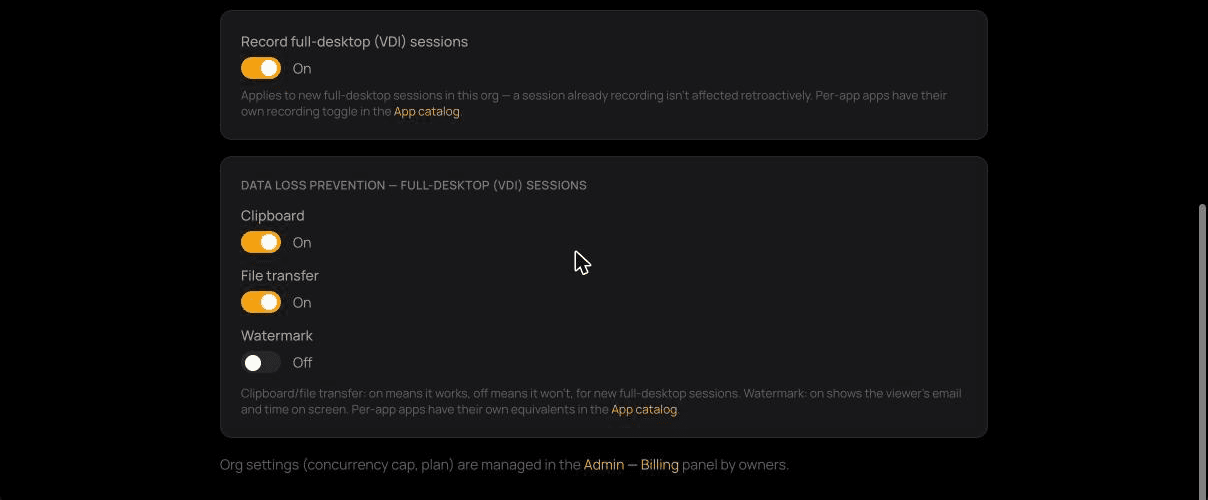
The watermark is a setting for each application, with an organization-level equivalent for full-desktop sessions. It starts off, so turn it on for the apps where an attributed leak matters most.
- Applications that show customer or financial records.
- Anything contractors or outside staff use.
- Sessions that are shared with viewers, since everyone watching is attributed.
Pair it with the other controls
A watermark covers the camera. The other controls cover the digital routes out.
- Block the clipboard and file transfer where people do not need them.
- Record sessions, so you can review what happened if something does go wrong.
- End someone's access the moment it should stop, since access ends on the next request.
| Control | What it does | Default | Where you set it |
|---|---|---|---|
| Clipboard | Allows or blocks copy and paste between the session and the person's device | On | Per application, and for full-desktop sessions |
| File transfer | Allows or blocks uploading and dropping files into the session | On | Per application, and for full-desktop sessions |
| Watermark | Draws the viewer's email and the time into the stream itself, so a photo of the screen carries it | Off | Per application, and for full-desktop sessions |
| Recording | Keeps a frame-for-frame replay of the session (Beta) | You turn it on | Per application, with a separate setting for full-desktop sessions |
Tell people it is there
A watermark works partly because people know about it. Say so in your acceptable-use guidance, and keep the purpose narrow: attribution and accountability, not surveillance of ordinary work.
Related features
Questions.
No. It makes a screenshot or photo traceable. To limit digital routes out, use the clipboard and file-transfer controls.